GPU Passthrough
A guide on how to set up GPU passthrough on Proxmox.
Overview
GPU passthrough is a technique that allows a virtual machine (VM) to directly access a physical GPU, enabling better performance for graphics-intensive applications. This guide will walk you through the process of setting up GPU passthrough on Proxmox.
Every setup is a bit different. I am running a Threadripper and NVIDIA A4000 and this worked for me. It may be different depending on your setup.
Enable IOMMU in GRUB
Edit GRUB
nano /etc/default/grubFind the line that starts with GRUB_CMDLINE_LINUX_DEFAULT and add intel_iommu=on or amd_iommu=on depending on your CPU. I found that adding iommu=pt is often recommended as well so I usually add it. For example:
GRUB_CMDLINE_LINUX_DEFAULT="quiet intel_iommu=on iommu=pt"Save and exit the file by pressing CTRL + X, then Y, and then Enter.
Update GRUB
update-grubEnable VFIO Kernel Modules
Edit the modules file
nano /etc/modulesAdd the following lines to the end of the file:
vfio
vfio_iommu_type1
vfio_pci
vfio_virqfd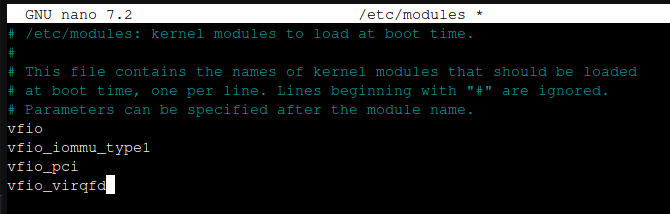
Save and exit the file by pressing CTRL + X, then Y, and then Enter.
Blacklist NVIDIA Drivers on Hostname
Edit the blacklist file
nano /etc/modprobe.d/blacklist-nvidia.confAdd the following lines to the end of the file:
blacklist nouveau
blacklist nvidia
blacklist nvidiafb
Bind GPU to VFIO
Find the GPU's device IDs:
lspci -nn | grep -i nvidiaYou should see something like this:
41:00.0 VGA compatible controller [0300]: NVIDIA Corporation GA104GL [RTX A4000] [10de:24b0] (rev a1)
41:00.1 Audio device [0403]: NVIDIA Corporation GA104 High Definition Audio Controller [10de:228b] (rev a1)
Create a file
nano /etc/modprobe.d/vfio.confAdd the following lines to the end of the file, replacing 10de:24b0 and 10de:228b with your GPU's device IDs:
options vfio-pci ids=10de:24b0,10de:228bSave and exit the file by pressing CTRL + X, then Y, and then Enter.
Update initramfs
update-initramfs -u -k allReboot
rebootVerify GPU Passthrough
After the system reboots, you can verify that the GPU is bound to VFIO by running the following command:
lspci -nnk -d 10de:24b0You should see something like this:
41:00.0 VGA compatible controller [0300]: NVIDIA Corporation GA104GL [RTX A4000] [10de:24b0] (rev a1)
    Subsystem: NVIDIA Corporation Device [10de:24b0]
    Kernel driver in use: vfio-pci
    Kernel modules: nvidiafb, nouveau
If you see Kernel driver in use: vfio-pci, then the GPU is successfully bound to VFIO.
Create a VM
Create a new VM in Proxmox and select the GPU as a PCI device. Make sure to check the box for "All Functions" to passthrough all functions of the GPU. You can also select the audio device if you want to passthrough the audio as well.