Wake on LAN
Turn on your PC over LAN with Magic Packets. A guide to verifying WOL support, enabling it in BIOS and the OS, and sending magic packets.
Verify WOL Supported
Not all cards have the Wake on LAN feature so it is good to verify that you have the capability. Ensure ethtool is installed
sudo apt install ethtoolIdentify the correct interface
ip route | grep defaultThe output for my PC is the following, and my interface is enp4s0f0

Use ethtool to check if the network card supports WOL
sudo ethtool <NETWORK INTERFACE>Check the Supports Wake-on section for g, which means it supports wake on magic packet. Multiple letters may be present indicating additional features:
- p: Wake on PHY activity: The network interface can wake up the system when there is physical layer activity (e.g., the cable being plugged in or signal detected).
- u: Wake on unicast packets: The interface can wake up the system when it receives a unicast packet addressed specifically to this machine.
- m: Wake on multicast packets: The interface can wake up the system when it receives multicast packets.
- b: Wake on broadcast packets: The interface can wake up the system when it receives broadcast packets.
- g: Wake on magic packet: The interface can wake up the system when it receives a magic packet, which is the standard packet used in most Wake-on-LAN implementations.

Example of a card that does not support WOL

The value for Wake-on shows the current status of the card, and it may need to be enabled to be used. The next section covers how to enable a service that re-enables Wake-on when the PC is booted.
Enable Wake On in the BIOS
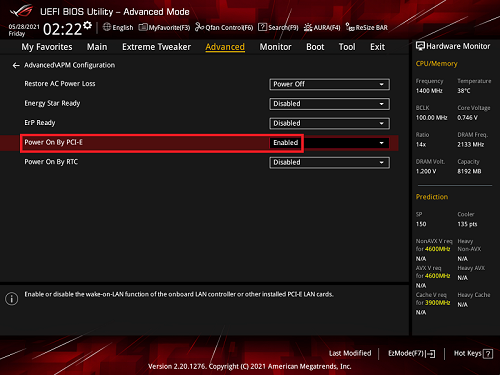
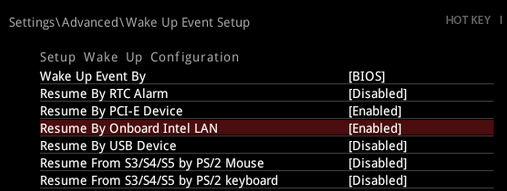
Whether using an ethernet port that is built into the motherboard or one that is installed in a PCI-E slot, ensure Wake-On support is enabled in the BIOS. Typically the Wake On setting is located in the "Power" or "Advanced" sections. There may be entries for enabling wake/resume by "Onboard LAN" or "PCI-E Device"
ASUS
MSI
Enable Wake On in the OS
If the motherboard or PCI-E card supports Wake-on, it is a good idea to ensure that it is re-enabled at boot. There are times when it may get disabled so to ensure that it remains enabled a simple service can be created. Start by creating the service
sudo nano /etc/systemd/system/wol@.serviceAdd the service code
[Unit]
Description=Enable Wake-on-LAN on %i
After=network-online.target

[Service]
ExecStart=/sbin/ethtool -s %i wol g

[Install]
WantedBy=multi-user.targetEnable the service for the specific interface identified above, which will run the service at boot
sudo systemctl enable wol@<interface>Get MAC Address
In order to send a magic packet, the MAC address of the interface is needed
ip addr show
Send Magic Packets
A PC with WOL enabled can be turned on via sending a magic packet. You will need the wakeonlan package installed to do this:
sudo apt install wakeonlanTo wake the PC, send a magic packet by specifying the MAC address of the network card with WOL functionality
wakeonlan <MAC ADDRESS>