This post has been superseded. Check out the updated version: Pi-hole + Unbound on Proxmox: Network-Wide Ad Blocking with Recursive DNS (2026)
Pi-hole v6 Installation Guide for Proxmox VE 9 LXC Container
This guide provides step-by-step instructions for installing Pi-hole v6.2.2 on Proxmox VE 9 as an LXC container with a static IP address.
Pi-hole v6 Installation Guide for Proxmox VE 9 LXC Container (2025)
This guide provides step-by-step instructions for installing Pi-hole v6.2.2 on Proxmox VE 9 as an LXC container with a static IP address.
Prerequisites
- Proxmox VE 9.0.x installed and running
- SSH or console access to Proxmox host
- Network connectivity for downloading container templates
- An available static IP address on your network
- Your network gateway IP address
Network Configuration Required
Before starting, determine:
- Desired Pi-hole IP: An unused static IP (e.g.,
192.168.10.100) - Gateway (typically router) IP: Your router's IP (e.g.,
192.168.10.1) - Subnet Mask: Usually
/24for home networks
Installation Steps
Step 1: Create the LXC Container
All commands should be run on the Proxmox host (not inside a container)
Ensure your templates are up-to-date
pveam updateIdentify the correct version of Debian available
pveam available | grep debian | grep -v turnkeyFor this guide, Debian 12 will be used. Download it to local storage. Local storage is typically reserved for backups, iso images, and container templates (if using a newer version of Debian, replace the image as needed)
pveam download local debian-12-standard_12.12-1_amd64.tar.zstCreate the container
pct create 100 local:vztmpl/debian-12-standard_12.12-1_amd64.tar.zst \
  --hostname pihole \
  --memory 512 \
  --cores 1 \
  --rootfs local-lvm:4 \
  --net0 name=eth0,bridge=vmbr0,ip=192.168.10.100/24,gw=192.168.10.1 \
  --unprivileged 1 \
  --features nesting=1 \
  --onboot 1 \
--start 1Parameters explained:
100: Container ID (must be unique)--memory 512: 512MB RAM (minimum for Pi-hole)--cores 1: Single CPU core (sufficient for home use)--rootfs local-lvm:4: 4GB disk space--net0: Static IP configuration--unprivileged 1: Better security isolation--features nesting=1: Required for Pi-hole--onboot 1: Auto-start on system boot--start 1: Start immediately after creation
Important adjustments to make:
- Container ID (100): Change if already in use (check with
pct list) - IP Address: Replace
192.168.10.100/24with your desired static IP. My homelab is on 192.168.10.0/24 and I take the Container ID and use it for the IP. In this case the container ID is 100 so I will use 192.168.10.100. - Gateway: Replace
192.168.10.1with your network's gateway - Storage: Replace
local-lvmif using different storage (check withpvesm status). Note this is different thanlocal, which is where we downloaded the template. - Bridge: Replace
vmbr0if using different bridge (check withip a | grep vmbr). Howevervmbr0will be correct for most people.
Verify the container has been created (replace 100 with your container id)
pct status 100Step 2: Initial Container Setup
Enter the container
pct enter 100Update the container
apt update && apt upgrade -yInstall required packages
apt install -y \
    curl \
    wget \
    sudo \
    git \
    ca-certificates \
    gnupg \
ufwEnsure certificates are updated
update-ca-certificatesEnter the temp folder
cd /tmpDownload the latest release (update as needed: https://github.com/pi-hole/pi-hole/releases)
wget https://github.com/pi-hole/pi-hole/archive/refs/tags/v6.2.2.tar.gzExtract the tar
tar -xzf v6.2.2.tar.gzMove to the install directory
cd pi-hole-6.2.2/automated\ install/Review the installation script (optional)
less basic-install.shRun the Installer. The script method is used due to the LXC having issues running the interactive installer.
script -c "bash basic-install.sh" /dev/nullStep 3: Install Pi-hole
- Press "OK" for the initial prompt regarding Pi-hole.
- Press "OK" after reading the donation information
- Read the notice regarding the static IP, press "Continue"
- Select desired Upstream DNS Provider
- Accept the default blocklist
- Enable query logging
- Select "Yes" to select a privacy mode
- Take note of the web address for Pi-hole
- Press "OK" to finish the installation
Step 4: Post Installation Steps
Open up the root .bashrc file
nano /root/.bashrcAt the bottom, add the path to /usr/local/bin
export PATH=$PATH:/usr/local/binRun source to make the changes take effect
source /root/.bashrcVerify you can run pihole commands
pihole -vNow set the Pi-hole admin password
pihole setpassword "<YOUR PASSWORD>"Finally, configure ufw (firewall)
ufw allow 53/tcp
ufw allow 53/udp
ufw allow 80/tcpEnable ufw
ufw --force enableExit the container
exitStep 5: Configure Router/Devices
Point your network devices to use Pi-hole as their DNS server:
Option 1: Router Level (Recommended - Affects all devices)
- Access your router's admin interface
- Set Primary DNS to:
192.168.10.100(your Pi-hole IP) - Set Secondary DNS to:
1.1.1.1(Cloudflare as fallback) - Save and restart router if needed
Option 2: Individual Devices
- Configure each device's network settings
- Set DNS server to your Pi-hole IP address
Common Pi-hole CLI Commands
Update Pi-hole
pihole -upCheck Pi-hole status
pihole statusTail Pi-hole logs (CTRL+C to exit)
pihole -tConclusion
Your Pi-hole is now installed and configured on Proxmox VE 9. The system will automatically block ads and trackers for all devices using it as their DNS server.
Next Steps:
- Add additional blocklists via the web interface
- Whitelist any necessary domains
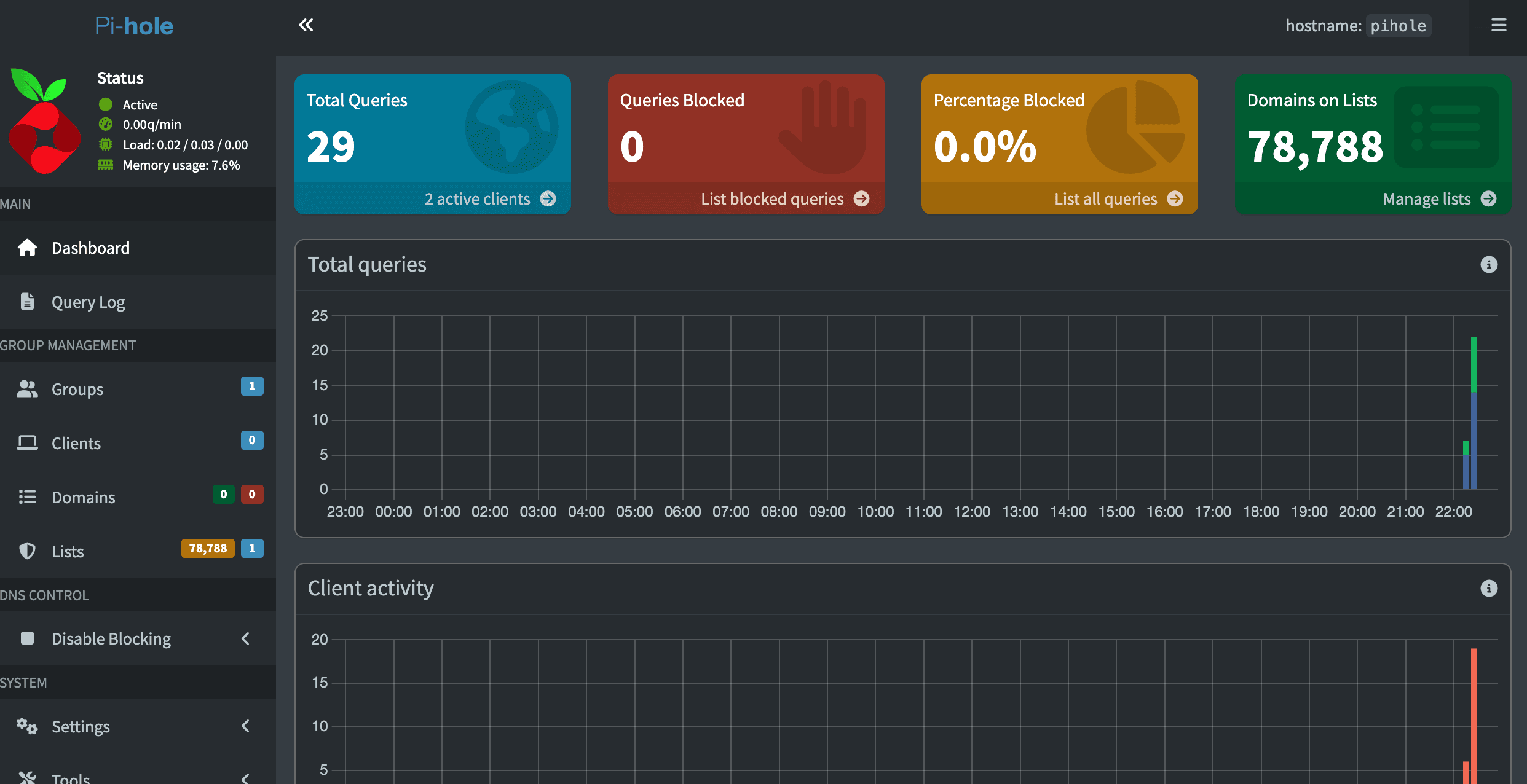
- Monitor the dashboard for blocked queries
- Set up regular backups
- Install Nginx Proxy Manager and set up local DNS entries
For additional help, visit the Pi-hole documentation.