Proxmox VE 9 Three-Node Cluster Setup Guide
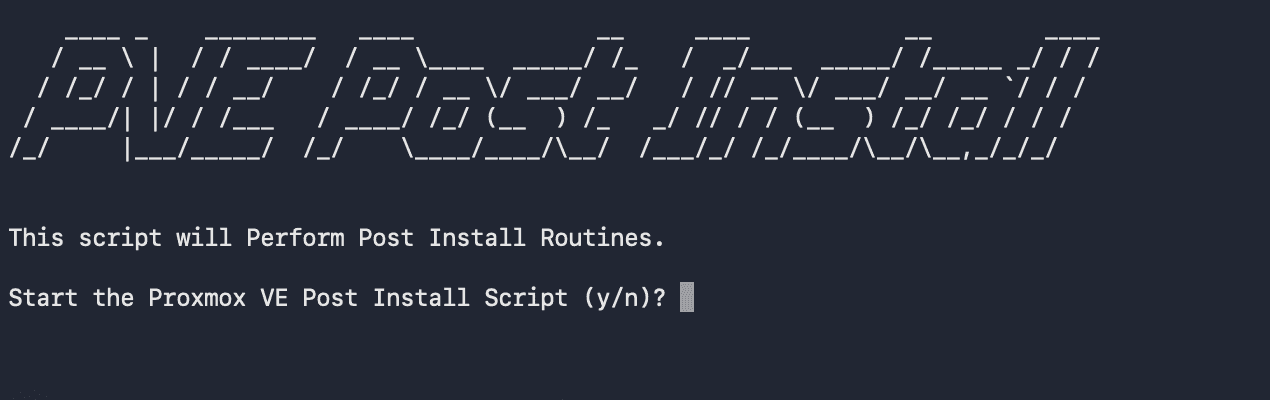
This guide replicates what the Proxmox VE Helper Scripts post-install script does, but manually via CLI so each step is understood. Then it covers setting up a 3-node cluster.
Proxmox VE 9 Three-Node Cluster Setup Guide
Manual Post-Install Configuration & Cluster Setup via CLI
This guide replicates what the Proxmox VE Helper Scripts post-install script does, but manually via CLI so each step is understood. Then it covers setting up a 3-node cluster.
Prerequisites
- 3 Proxmox VE 9.0.x nodes freshly installed
- Network connectivity between all nodes
- SSH access to all nodes
- Static IP addresses configured on all nodes
My Node Configuration
This guide will be based on my node configuration
Node 1 (ceres): IP=192.168.10.10
Node 2 (eros):  IP=192.168.10.11
Node 3 (tyco):  IP=192.168.10.12
Part 1: Post-Install Configuration (Perform on ALL Nodes)
These steps replicate exactly what the helper script does, nothing more.
Step 1: Configure APT Repositories
Proxmox 9 uses the newer deb822 format for repositories.
1.1 Remove Enterprise Repositories
Check if enterprise repository exists and comment it out:
if grep -q "Components:.*pve-enterprise" /etc/apt/sources.list.d/*.sources 2>/dev/null; then
    for file in /etc/apt/sources.list.d/*.sources; do
        if grep -q "Components:.*pve-enterprise" "$file"; then
            sed -i '/^\s*Types:/,/^$/s/^\([^#].*\)$/# \1/' "$file"
        fi
    done
fi1.2 Configure Debian Base Repositories
Create deb822 format Debian sources:
cat > /etc/apt/sources.list.d/debian.sources <<EOF
Types: deb
URIs: http://deb.debian.org/debian
Suites: trixie
Components: main contrib
Signed-By: /usr/share/keyrings/debian-archive-keyring.gpg

Types: deb
URIs: http://security.debian.org/debian-security
Suites: trixie-security
Components: main contrib
Signed-By: /usr/share/keyrings/debian-archive-keyring.gpg

Types: deb
URIs: http://deb.debian.org/debian
Suites: trixie-updates
Components: main contrib
Signed-By: /usr/share/keyrings/debian-archive-keyring.gpg
EOF1.3 Add No-Subscription Repository
Add the free Proxmox repository:
cat > /etc/apt/sources.list.d/proxmox.sources <<EOF
Types: deb
URIs: http://download.proxmox.com/debian/pve
Suites: trixie
Components: pve-no-subscription
Signed-By: /usr/share/keyrings/proxmox-archive-keyring.gpg
EOF1.4 Add Ceph Repository (Disabled since you don't need it)
Create disabled Ceph repository file (no subscription). Remove the # symbols if you want to enable. Another option is to add an "Enabled:" field with "yes" for enabled or "no" for disabled. This is the new deb822 method and probably the better way.
cat > /etc/apt/sources.list.d/ceph.sources <<EOF
# Types: deb
# URIs: http://download.proxmox.com/debian/ceph-squid
# Suites: trixie
# Components: no-subscription
# Signed-By: /usr/share/keyrings/proxmox-archive-keyring.gpg
EOFCreate disabled Ceph enterprise repository (requires subscription):
cat > /etc/apt/sources.list.d/ceph-enterprise.sources <<EOF
# Disabled - requires subscription
# Types: deb
# URIs: https://enterprise.proxmox.com/debian/ceph-squid
# Suites: trixie
# Components: enterprise
# Signed-By: /usr/share/keyrings/proxmox-archive-keyring.gpg
EOF1.5 Add PVE Test Repository (Disabled)
Create disabled pvetest repository for future use. Remove the # symbols if you want to enable:
cat > /etc/apt/sources.list.d/pve-test.sources <<EOF
# Types: deb
# URIs: http://download.proxmox.com/debian/pve
# Suites: trixie
# Components: pve-test
# Signed-By: /usr/share/keyrings/proxmox-archive-keyring.gpg
EOFStep 2: Disable Subscription Nag
This removes the popup reminder about subscriptions when logging into the web interface.
Create APT hook to automatically patch the subscription check:
cat > /etc/apt/apt.conf.d/no-nag-script <<'EOF'
DPkg::Post-Invoke { "if [ -s /usr/share/javascript/proxmox-widget-toolkit/proxmoxlib.js ] && ! grep -q -F 'NoMoreNagging' /usr/share/javascript/proxmox-widget-toolkit/proxmoxlib.js; then echo 'Removing subscription nag from UI...'; sed -i '/data\.status/{s/\!//;s/active/NoMoreNagging/}' /usr/share/javascript/proxmox-widget-toolkit/proxmoxlib.js; fi"; };
EOFReinstall widget toolkit to apply the change:
apt --reinstall install -y proxmox-widget-toolkitNote: Clear your browser cache after this change (Ctrl+Shift+R).
Step 3: Disable High Availability Services (Since Not Using HA)
The helper script offers to disable HA services if you're not using them.
Disable Local Resource Manager:
systemctl disable --now pve-ha-lrmDisable Cluster Resource Manager:
systemctl disable --now pve-ha-crmImportant: Keep corosync enabled as it's needed for cluster communication. Do not disable corosync.
Step 4: Update the System
Update package lists:
apt updatePerform full system upgrade:
apt dist-upgrade -yStep 5: Reboot (Recommended)
The helper script recommends a reboot after these changes:
rebootWait for the node to come back online before proceeding to the next node.
Part 2: Create the Cluster
The helper script doesn't handle cluster creation - this is a separate process. Here's how to set up a 3-node cluster. The steps are the same for any cluster size, but in this example it will be a 3-node cluster.
Step 6: Initialize the Cluster (On First Node Only - ceres)
Create cluster with a meaningful name:
pvecm create homelab-clusterVerify cluster status:
pvecm statusThe output should show:
- Cluster name: homelab-cluster
- Nodes: 1
- Quorum: 1
Step 7: Join Additional Nodes to Cluster
On the second node (eros):
Join the cluster using IP of first node (you'll be prompted for the root password of the first node):
pvecm add 192.168.10.10On the third node (tyco):
Join the cluster using IP of first node (you'll be prompted for the root password of the first node):
pvecm add 192.168.10.10Step 8: Verify Cluster Formation
On any node, verify all nodes have joined.
Check cluster status:
pvecm statusList all nodes:
pvecm nodesCheck Corosync status (should be active):
systemctl status corosyncExpected output should show:
- 3 nodes online
- Quorum established (with 3 votes)
- All nodes with "online" status
Important Notes
Browser Cache
After completing the post-install steps, clear your browser cache:
- Chrome/Firefox: Ctrl+Shift+R or Ctrl+F5
- This ensures the subscription nag removal takes effect
Apply to All Nodes
The post-install steps (Part 1) must be performed on ALL nodes in the cluster individually.
Cluster Considerations
- Corosync remains enabled for cluster communication (even with HA disabled)
- You can migrate VMs/containers between nodes if using shared storage
- The cluster provides centralized management through any node's web interface
Summary
This guide covered:
- Post-Install Steps (exactly what the helper script does):
- Configure APT repositories (switch to no-subscription)
- Disable subscription nag
- Disable HA services (since not needed)
- System update
- Reboot
- Cluster Creation:
- Initialize cluster on first node
- Join additional nodes
- Verify cluster status
Your 3-node Proxmox cluster is now configured and ready for use without unnecessary overhead from enterprise features or high availability services you don't need.