Tutorial
Proxmox Backup Server 3-2-1 Part 2: PBS-to-PBS Pull Sync
Add hardware redundancy to your backups: stand up a second Proxmox Backup Server that pulls from the primary over an API token, and see why pull beats push.
Contents
- Prerequisites
- Why Pull, Not Push
- Step 1: Deploy a Second PBS Instance
- Step 2: Create a Datastore on the Secondary PBS
- Step 3: Create an API Token on the Primary PBS
- Grant the Token Read Access
- Step 4: Configure the Remote Connection on the Secondary PBS
- Step 5: Create a Pull Sync Job on the Secondary PBS
- Step 6: Run the Sync and Verify the Backup
- Step 7: Disaster Recovery Drill — Rebuild the Primary From the Secondary
- Destroying the Container
- Removing CT 100's Backup Group From the Primary
- Reverse-Syncing Secondary → Primary (the Recovery)
- Restoring CT 100 Through PVE — No Storage Changes Needed
- What Just Happened
- Troubleshooting
- Sync Job Fails with Permission Denied
- "Failed to Scan Remote" When Setting Up Sync Job
- Remote Connection Fails With Fingerprint Mismatch
- "Hostname Could Not Be Resolved" When Adding the Remote
- Reverse Sync Fails During Recovery
- Summary
- What's Next
This is Part 2 of the PBS 3-2-1 Backup Strategy series. Part 1 covered USB removable datastores for local redundancy. Part 2 (this guide) adds the second hardware target — a second PBS instance pulling backups from the primary. Part 3 covers Cloudflare R2 for offsite cloud backup.
A USB drive (Part 1) protects against disk failure on the primary host. But the drive sits in the same room as the primary — if the host itself dies (motherboard failure, PSU failure, ransomware that wipes everything mounted), both copies go down together. You need a second independent PBS instance.
This part of the series deploys a second PBS, configures it to pull backups from the primary using PBS's native pull sync, and verifies the whole thing with a real disaster recovery demonstration. By the end you'll have:
- A second PBS instance running independently from the primary
- A pull sync job that mirrors backups from the primary's
backupsdatastore to the secondary'ssynced-backupsdatastore - An API token with the minimum-privilege
DatastoreReaderrole on the primary - Fingerprint pinning between the two PBS instances to prevent man-in-the-middle attacks
- A verified disaster recovery drill proving the secondary can rebuild the primary and restore destroyed containers
Here's where Part 2 fits in the full 3-2-1 architecture:
Prerequisites
- Proxmox Backup Server 4.1 running on the primary with at least one backup stored
- Capacity on your Proxmox host to deploy a second VM (1 vCPU, 2 GB RAM, 16 GB disk minimum) — or a second physical host if you want true fault tolerance
- The PBS installer ISO already uploaded to your Proxmox host
NOTE
This tutorial uses 10.1.20.200 for the primary PBS and 10.1.20.201 for the secondary. These are specific to our VLAN 20 lab network. Substitute your own IP addresses throughout — the configuration is identical regardless of your subnet. If you're not using VLANs, your IPs will likely be something like 192.168.1.x.
Why Pull, Not Push
PBS 4.0 added push sync as an option, but for the second-PBS use case you almost always want pull.
The difference comes down to who holds the credentials:
- Pull sync: the secondary PBS pulls backups from the primary. The sync job lives on the secondary. The primary never has credentials to the secondary.
- Push sync: the primary PBS pushes backups to the secondary. The sync job lives on the primary. The primary holds credentials to the secondary.
Pull is the security advantage: if ransomware compromises the primary, the attacker has no way to reach or destroy the secondary's copies. Push gives the attacker a path. For an offsite backup tier, that asymmetry matters.
NOTE
For real fault tolerance, the secondary PBS should run on completely separate physical hardware — a NAS, a second server in another room, or even a friend's house over a VPN. This guide deploys both PBS instances on the same Proxmox host so you can walk through the configuration without needing additional hardware. The configuration is identical either way — only the physical location of the secondary changes.
Step 1: Deploy a Second PBS Instance
Follow the PBS Setup Guide to deploy a second PBS instance. The process is identical — create a VM, run the PBS installer, configure networking, run the post-install script.
The only differences from the primary:
| Setting | Primary | Secondary |
|---|---|---|
| VM ID | 200 | 201 (or any unused ID) |
| Hostname | pbs | pbs-remote |
| IP address | 10.1.20.200 | 10.1.20.201 (use a different IP on your network) |
| Disk | 32 GB | 16 GB (just stores synced backups) |
| RAM | 2 GB | 2 GB |
| Cores | 2 | 1 |
Once the secondary is installed and you can reach its web UI at https://<your-secondary-ip>:8007, continue to Step 2.
Step 2: Create a Datastore on the Secondary PBS
Open the secondary PBS web UI and navigate to Datastore > Add Datastore. Fill in the General tab:
- Name:
synced-backups - Datastore Type:
Local - Backing Path:
/mnt/datastore/synced-backups(auto-fills based on name) - GC Schedule:
weekly(pick any day/time) - Prune Schedule:
none
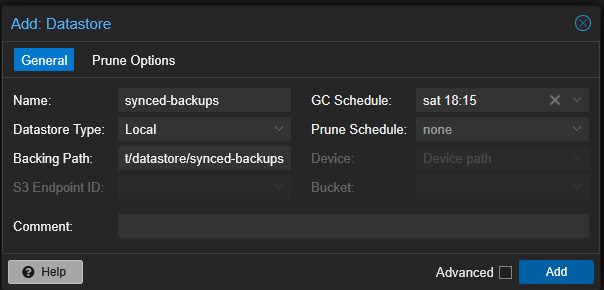
Leave the Prune Options tab empty — don't set any retention values. The sync job in Step 5 uses Remove Vanished, which means the secondary automatically mirrors the primary's pruning decisions. Setting separate prune/retention on the secondary would create two things fighting over what to keep. GC weekly is the only thing the secondary needs — it cleans up orphaned chunks after Remove Vanished deletes snapshot indexes.
Click Add. PBS creates the directory and registers the datastore.
Step 3: Create an API Token on the Primary PBS
The secondary PBS needs to authenticate to the primary to pull backups. The token lives on the primary (the data source), and the secondary uses it to identify itself.
Open the primary PBS web UI and navigate to Configuration > Access Control > API Token tab. Click Add:
- User:
root@pam - Token Name:
pbs-sync - Enabled: checked
- Expire:
never
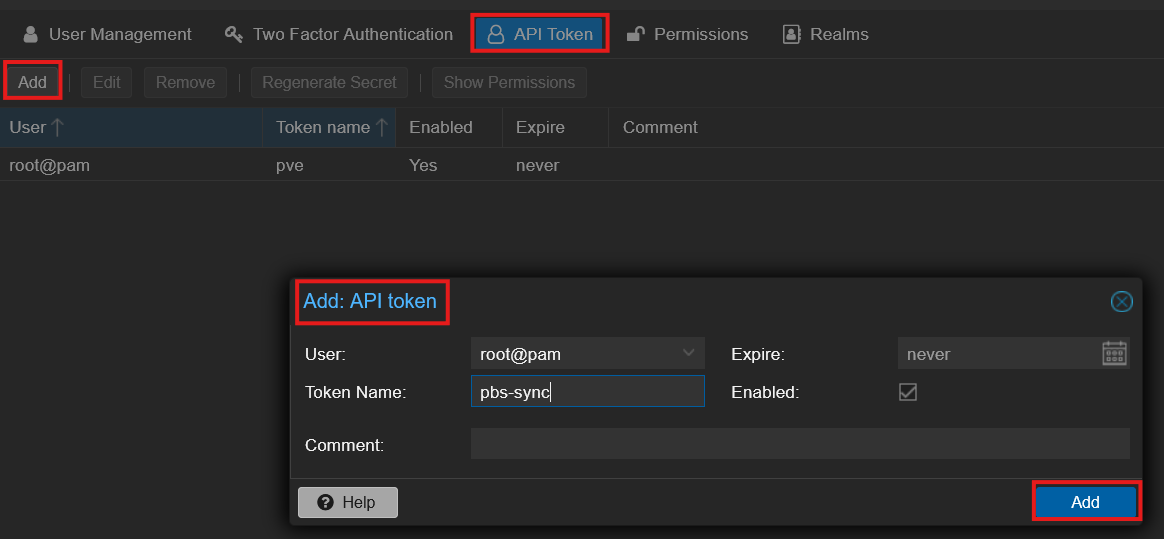
Click Add and copy the token secret immediately — it's shown only once and you can't recover it later. Store it somewhere safe; you'll paste it into the secondary's Remote dialog in Step 4.
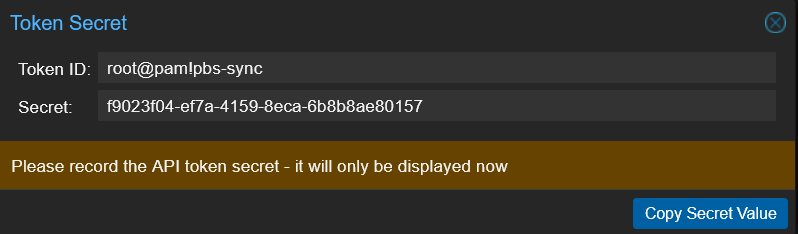
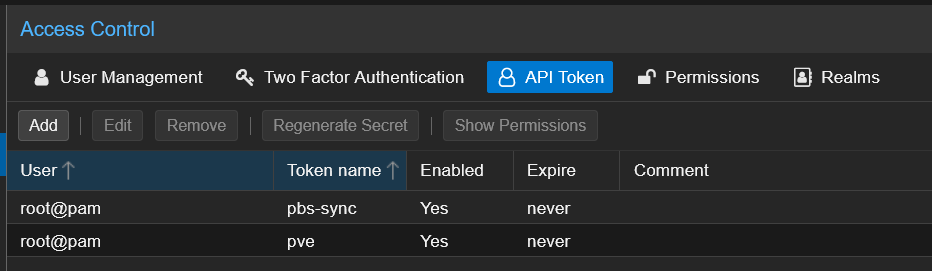
After copying the secret, the token appears in the API Token list alongside any existing tokens:
Grant the Token Read Access
Still on the primary PBS, switch to the Permissions tab. Click Add > API Token Permission:
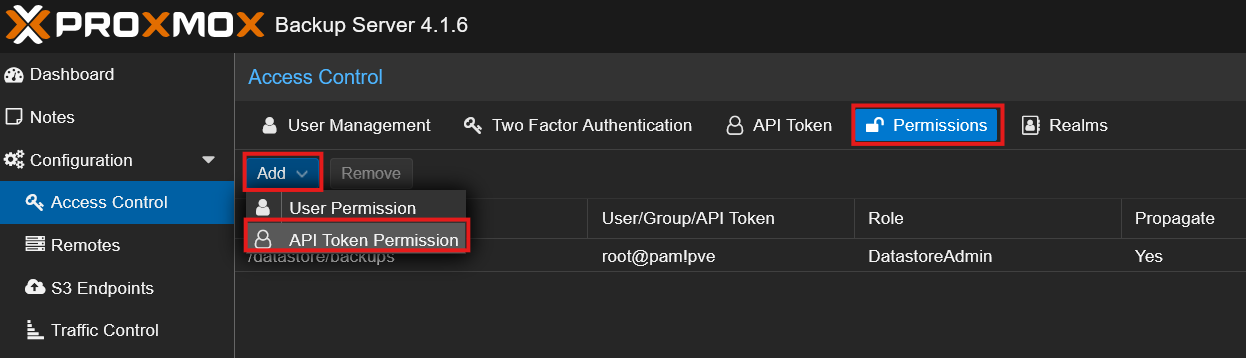
Fill in the dialog:
| Field | Value | Notes |
|---|---|---|
| Path | /datastore/backups | Scopes access to only the backups datastore |
| API Token | root@pam!pbs-sync | The token you just created |
| Role | DatastoreReader | Minimum role needed for pull sync |
| Propagate | checked | Default |
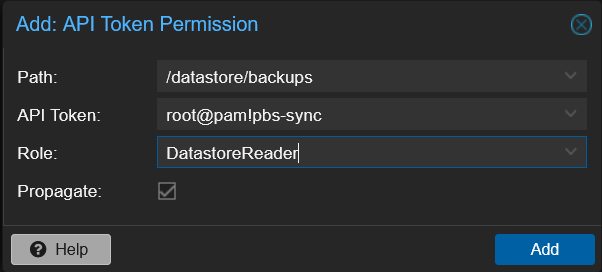
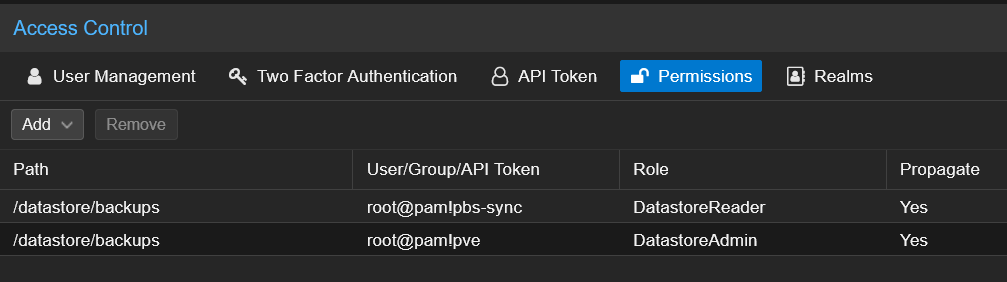
Click Add. The permission appears in the list:
NOTE
DatastoreReader is the minimum role for pull sync — it allows reading all backup contents in the datastore, which is exactly what the secondary needs. DatastoreAdmin would also work but grants far more than necessary, including the ability to delete backups. Don't give a sync token more power than it needs.
Step 4: Configure the Remote Connection on the Secondary PBS
Switch back to the secondary PBS web UI and navigate to Configuration > Remotes. Click Add.
You'll need the primary's TLS certificate fingerprint. On the primary PBS, click on the backups datastore > Summary tab > Show Connection Information:
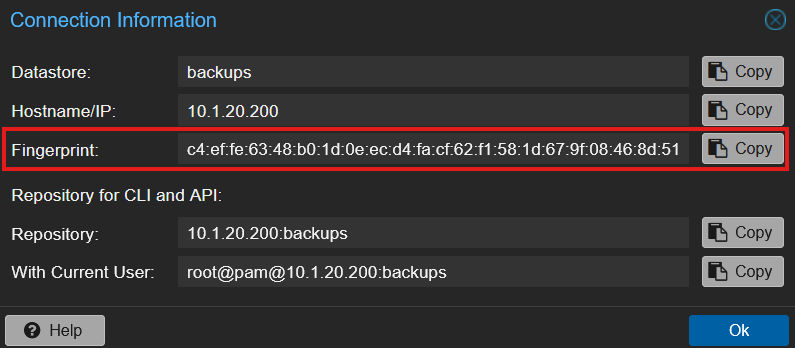
Copy the Fingerprint value — that's the SHA-256 fingerprint of the primary's TLS certificate.
Now fill in the Add Remote dialog on the secondary:
| Field | Value |
|---|---|
| Remote ID | pbs-primary |
| Host | 10.1.20.200 (your primary PBS IP) |
| Auth ID | root@pam!pbs-sync |
| Password | the token secret from Step 3 |
| Fingerprint | the SHA-256 fingerprint from the primary |
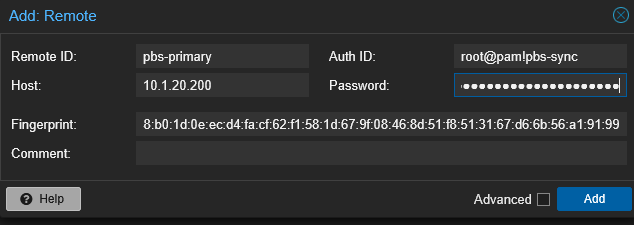
Click Add. PBS uses fingerprint pinning to prevent a man-in-the-middle attack between the secondary and the primary — necessary because PBS uses self-signed TLS certs by default.

Step 5: Create a Pull Sync Job on the Secondary PBS
Still on the secondary PBS web UI, click on the synced-backups datastore in the left sidebar > Sync Jobs tab > Add > Add Pull Sync Job.
Fill in the Add: Sync Job - Pull Direction dialog:
| Field | Value | Notes |
|---|---|---|
| Local Datastore | synced-backups | Auto-filled — this is where the sync writes |
| Sync Schedule | daily | Or choose a specific time like 02:00 for off-hours |
| Location | Remote | Source is on a different PBS |
| Source Remote | pbs-primary | The Remote you configured in Step 4 |
| Source Datastore | backups | The primary's datastore |
| Source Namespace | Root | Default |
| Max. Depth | Full | Sync the entire namespace tree |
| Remove Vanished | check it | Keep the secondary in lockstep with primary pruning |
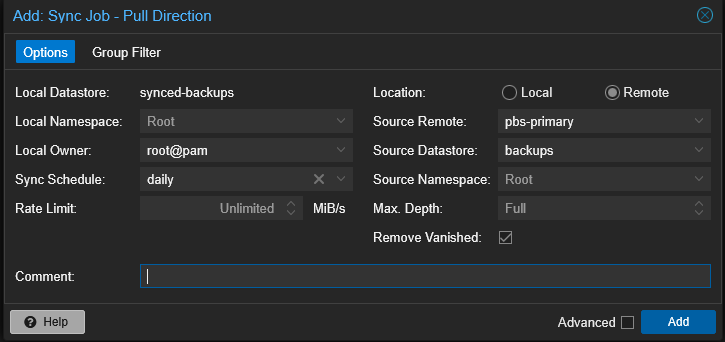
Click Add.
The secondary PBS will pull backups from the primary on the configured schedule. The primary never has credentials to the secondary — it can't modify, delete, or even see the synced copies. This is the pull security advantage in action.
Step 6: Run the Sync and Verify the Backup
Select the new sync job on the secondary PBS and click Run Now.
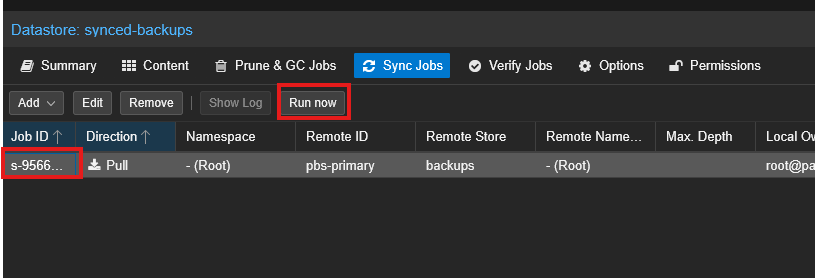
Watch the task log — you should see backup snapshots being pulled across the Remote connection from the primary. For a typical homelab with a few GB of backups, the first sync over a gigabit network completes in well under a minute.
Open the synced-backups datastore > Content tab on the secondary. The same backup groups from the primary should appear with matching timestamps.
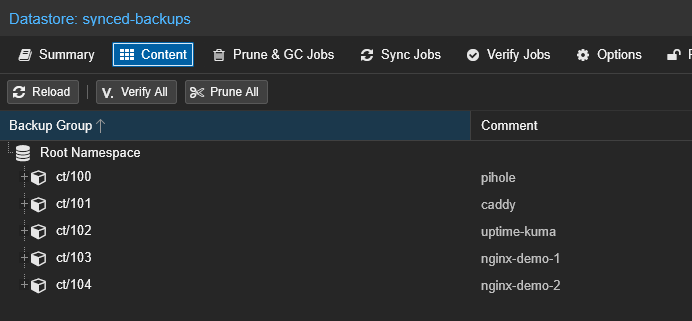
You now have the same backups on two separate PBS instances. The next step proves the secondary can actually rebuild the primary when something goes wrong.
Step 7: Disaster Recovery Drill — Rebuild the Primary From the Secondary
Same pattern as Part 1: destroy a real container, remove its backup from the primary, then recover everything from the secondary PBS — without any PVE-side configuration changes to the primary storage entry.
You don't need to follow along with this step. This is a demonstration to show the recovery pattern works end-to-end with a remote PBS tier. When you actually need it, you'll follow the same steps with your own data.
WARNING
This drill destroyed the running CT 100 (Pi-hole) and removed its backup group from the primary backups datastore. Everything was fully restored at the end, but don't attempt this on infrastructure your network depends on unless you're comfortable with a few minutes of downtime.
The architectural idea is the same as Part 1: PVE only ever talks to the primary backups datastore through its existing storage entry. The secondary PBS doesn't get added to PVE as a parallel restore source. Its job is to feed data BACK into the primary's backups after a disaster. Once the primary is rehydrated, PVE restores happen exactly the same way — no new credentials, no new storage entries, no PVE-side changes.
Destroying the Container
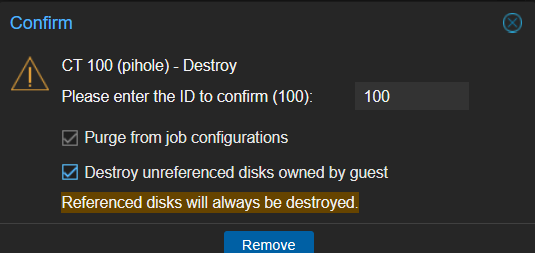
First, I confirmed CT 100 (Pi-hole) was running and serving DNS. Then I destroyed it in PVE.
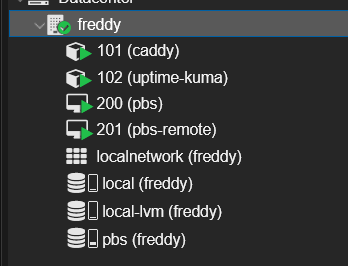
After the destroy, CT 100 is gone from the PVE sidebar.
Removing CT 100's Backup Group From the Primary
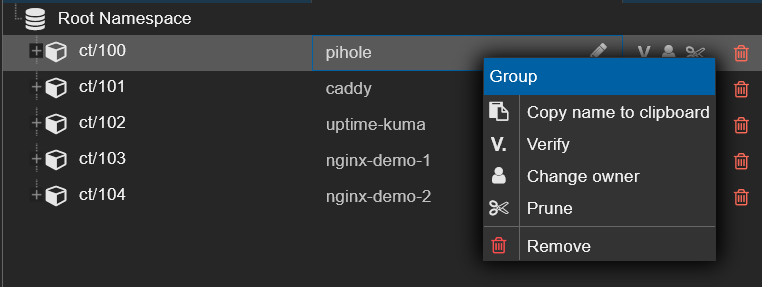
Next, I simulated the primary datastore losing CT 100's data. In the PBS web UI on the backups datastore > Content tab, I right-clicked the ct/100 group and clicked Remove.
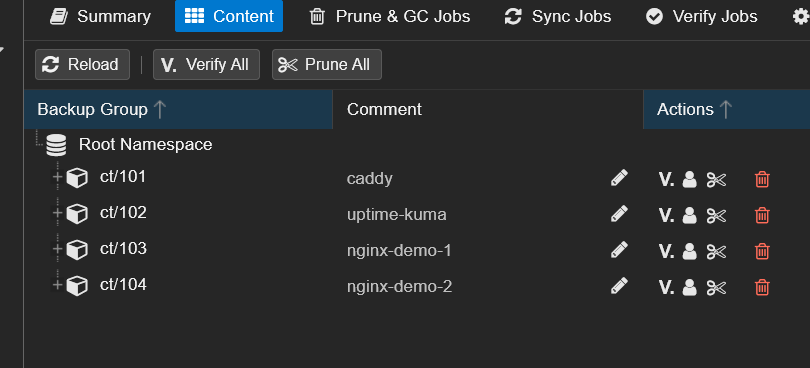
The ct/100 group disappeared from backups. CT 100 is now gone from both PVE and the primary backup datastore — the only place its backup data still exists is on the secondary PBS.
Reverse-Syncing Secondary → Primary (the Recovery)
For the recovery, the primary PBS needs a temporary connection to the secondary. On the primary, I went to Configuration > Remotes > Add and created a one-shot Remote using the secondary's root@pam credentials:
| Field | Value |
|---|---|
| Remote ID | recover-temp |
| Host | 10.1.20.201 (secondary PBS) |
| Auth ID | root@pam |
| Password | the secondary's root password |
| Fingerprint | the secondary's TLS fingerprint |
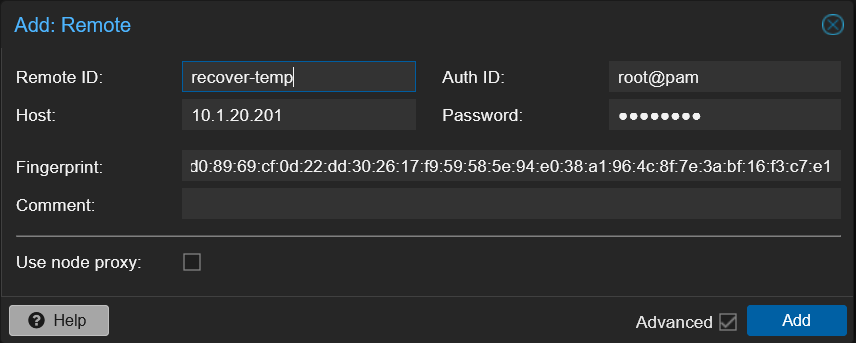
Then I created a sync job on the backups datastore that pulls from the secondary's synced-backups, with no schedule (one-shot) and a Group Filter scoped to ct/100:
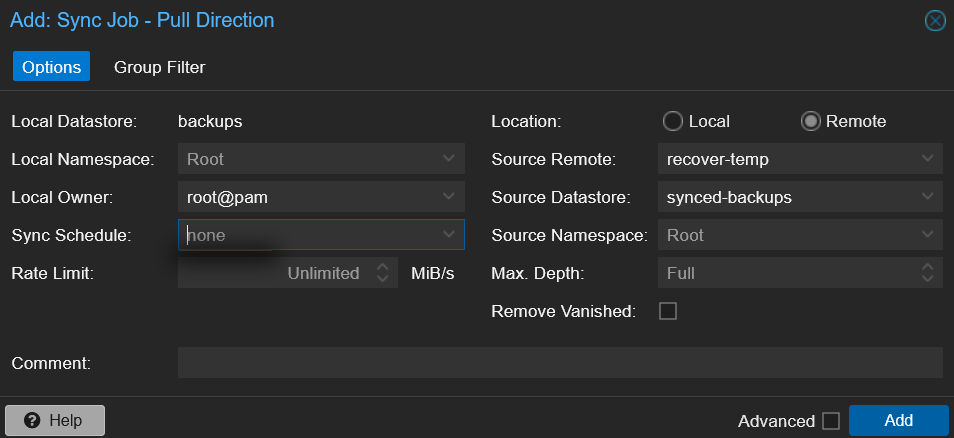
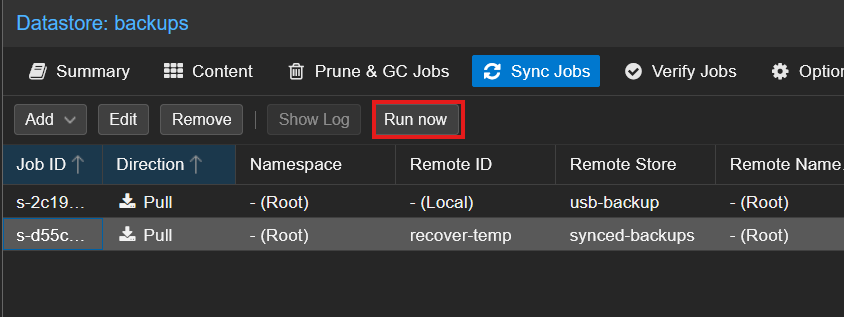
After clicking Run now, the recovery completed over the network in seconds:
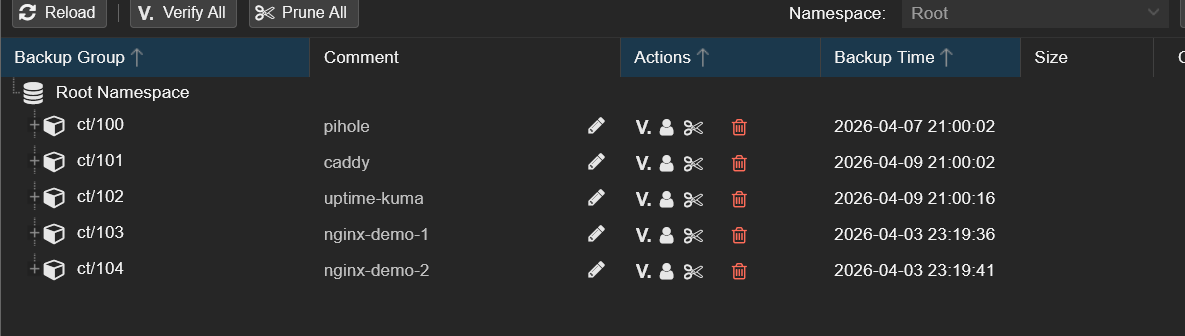
Back on the backups > Content tab, ct/100 is back with all its original snapshots:
Restoring CT 100 Through PVE — No Storage Changes Needed
The final step is identical to Part 1: in PVE, I clicked on the pbs storage — the same entry from the original Setup Guide — and the recovered CT 100 snapshots appeared immediately. I restored with Start after restore checked, and Pi-hole came back up at the same IP with the same config.
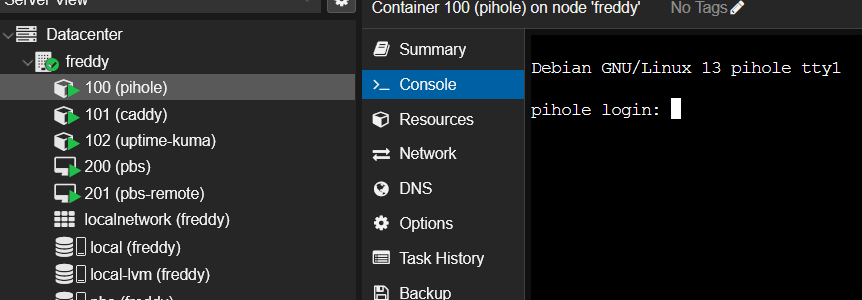
I then cleaned up by deleting the reverse sync job and the recover-temp Remote from the primary, since those were only needed for the one-shot recovery.
What Just Happened
The same two-disaster recovery as Part 1, but this time the backup data came from a completely separate PBS instance over the network:
| Disaster | Recovery |
|---|---|
| Pi-hole container destroyed in PVE | Restored from PBS via the existing PVE storage entry |
CT 100's backup group removed from primary backups | Rehydrated from the secondary PBS via reverse remote sync |
The key difference from Part 1: the secondary PBS could survive the primary host dying completely. If the NVMe in the primary host caught fire, the USB drive from Part 1 would burn with it — but the secondary PBS on separate hardware would still have every synced snapshot. That's the value of the second tier.
Troubleshooting
Sync Job Fails with Permission Denied
The API token needs at least DatastoreReader on the source datastore. Check the Permissions tab on the primary PBS under Configuration > Access Control — verify the root@pam!pbs-sync token has DatastoreReader on /datastore/backups.
"Failed to Scan Remote" When Setting Up Sync Job
Three things to check:
- Auth ID mismatch — make sure the Remote's Auth ID exactly matches the token name on the primary (e.g.,
root@pam!pbs-sync). A typo here silently fails. - Token secret — the Password field on the Remote takes the token secret (shown once at creation), not the root password.
- Permissions — the token exists but has no ACL entry. Check Configuration > Access Control > Permissions on the primary.
Remote Connection Fails With Fingerprint Mismatch
PBS pins the SHA-256 fingerprint of the remote PBS's TLS certificate to prevent man-in-the-middle attacks. If you reinstalled the primary PBS or regenerated its self-signed cert, the fingerprint changes and the secondary will refuse to connect. Get the new fingerprint from the primary's Show Connection Information dialog and update the Fingerprint field on the secondary's Remote configuration.
"Hostname Could Not Be Resolved" When Adding the Remote
The secondary PBS needs to reach the primary on TCP 8007. If both instances are on the same VLAN with no firewall between them, this just works. If they're on different VLANs or there's a firewall, allow tcp/8007 from secondary to primary.
Reverse Sync Fails During Recovery
For the recovery drill, the primary needs a temporary Remote pointing at the secondary. Make sure you create the Remote on the primary (not the secondary) and that the primary can reach the secondary on TCP 8007. Use the secondary's root@pam credentials and root password — no need to create a dedicated token for a one-shot recovery.
Summary
You now have:
- A second PBS instance running independently from the primary
- A daily pull sync from the primary's
backupsto the secondary'ssynced-backupsdatastore - A minimum-privilege API token (
pbs-sync) withDatastoreReader(notDatastoreAdmin) - Fingerprint pinning between the two PBS instances
- A verified disaster recovery drill proving the secondary can rebuild the primary datastore and restore destroyed containers — all with zero changes on the PVE side
Your data now survives both accidental deletion and complete failure of the primary host. But both PBS instances are still in the same physical location — fire, theft, or flood would take both down together. Part 3 fixes that.
What's Next
Part 3 of this series adds Cloudflare R2 as an offsite cloud tier via the PBS S3 backend (PBS 4.0 tech preview). This is the "1" in 3-2-1 — the offsite copy that survives even if your entire physical location is destroyed. Free for under 10 GB.
Part 1: USB Removable Datastores — if you skipped the local USB tier, that's the simplest place to start with PBS 3-2-1.