Complete Proxmox Backup Server Setup
November 5, 2025Tutorial
⚠This site is under active development. Some features may not work as expected, and new content is being added regularly.
This is Part 3 of the PBS 3-2-1 Backup Strategy series. Part 1 covered USB removable datastores. Part 2 covered PBS-to-PBS pull sync for hardware fault tolerance. Part 3 (this guide) is the offsite cloud tier — the "1" in 3-2-1 — using Cloudflare R2 via PBS's S3 backend.
USB (Part 1) and a second PBS (Part 2) protect against local hardware failure. But if your house floods, catches fire, or gets robbed, both go down together. True offsite backup means your data lives in a completely different physical location.
PBS 4.0 added S3-compatible cloud storage support and PBS 4.1 added bandwidth rate limiting. We'll use Cloudflare R2 because it has a generous free tier (10 GB), zero egress fees (downloads are free, which makes restores painless), and it's officially supported by PBS.
By the end of this guide you'll have:
Here's the complete 3-2-1 architecture with Part 3 highlighted:
graph LR
    PVE[Proxmox VE] -->|backup| PRIMARY[PBS Primary<br/>backups]
    PRIMARY -->|pull sync| USB[USB Drive<br/>Part 1]
    PRIMARY -->|pull sync| SECONDARY[PBS Secondary<br/>Part 2]
    PRIMARY -->|pull sync| R2[Cloudflare R2<br/>Part 3 - you are here]

    style R2 fill:#2563eb,stroke:#1d4ed8,color:#fff
    style USB fill:#374151,stroke:#4b5563,color:#fff
    style SECONDARY fill:#374151,stroke:#4b5563,color:#fff
    style PRIMARY fill:#374151,stroke:#4b5563,color:#fff
    style PVE fill:#374151,stroke:#4b5563,color:#fff
NOTE
S3 support in PBS 4.1 is still marked as a technology preview. It works well at homelab scale, but Proxmox hasn't graduated it to full production status yet.
Log into your Cloudflare account and navigate to R2 Object Storage in the left sidebar. If this is your first time using R2, click through to activate. The free tier requires a payment method on file but charges $0/month as long as you stay under:
After activation, click Create bucket:
pbs-backupsAutomaticClick Create bucket.
You'll need an API token for PBS to authenticate to R2. On the R2 Object Storage page, find the Account Details panel on the right side. Note the S3 API endpoint URL — you'll need this in Step 3.
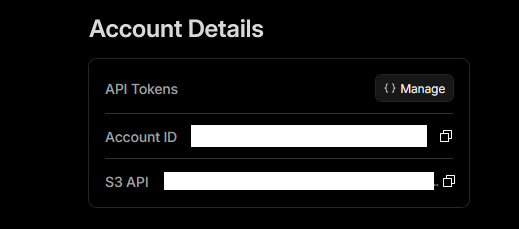
Click Manage next to API Tokens. On the API Tokens page, find the Account API Tokens section and click Create Account API token:

Configure:
pbs-backup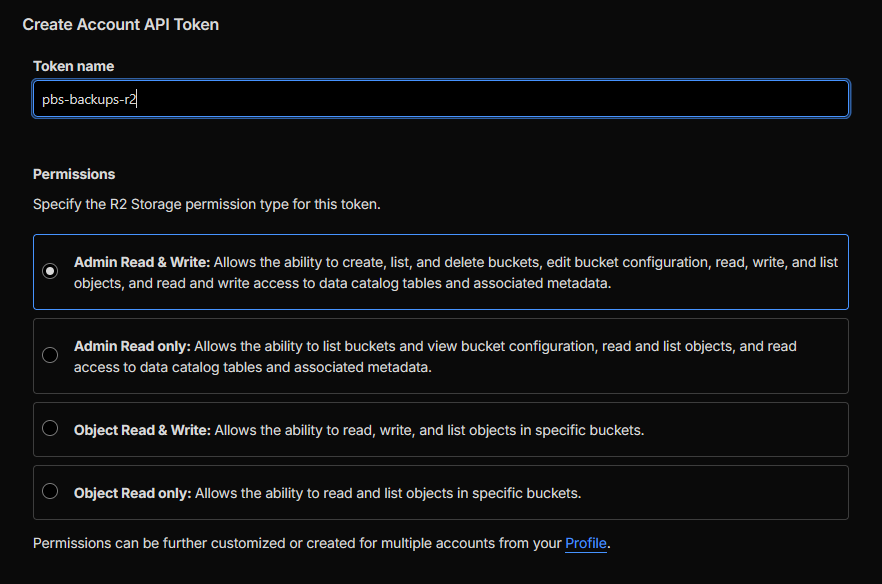
WARNING
Bucket-scoped Object permissions do not work with PBS's Add Datastore UI. PBS populates the bucket dropdown by calling ListBuckets, which is an account-level operation. A bucket-scoped token returns a 400 error. Admin Read & Write is required.
Mitigate the broader scope by keeping this R2 account dedicated to backups with no other buckets or data.
Click Create API Token. Copy both the Access Key ID and the Secret Access Key immediately — they're shown only once.
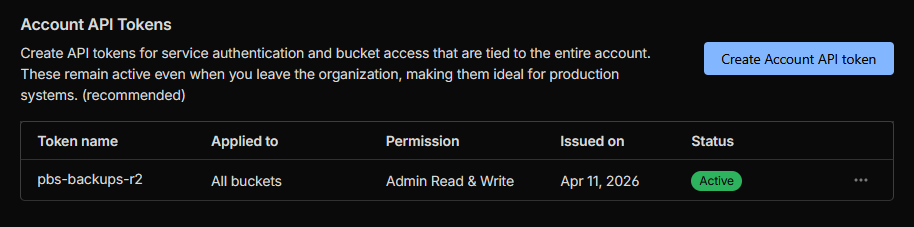
In the PBS web UI, navigate to Configuration > S3 Endpoints > Add.
| Field | Value |
|---|---|
| S3 Endpoint ID | cloudflare-r2 |
| Endpoint | Copy from the S3 API field on the R2 Object Storage page |
| Port | leave default (443) |
| Access Key | the Access Key ID from Step 2 |
| Secret Key | the Secret Access Key from Step 2 |
| Region | auto |
| Path Style | check it |
| Fingerprint | leave blank |
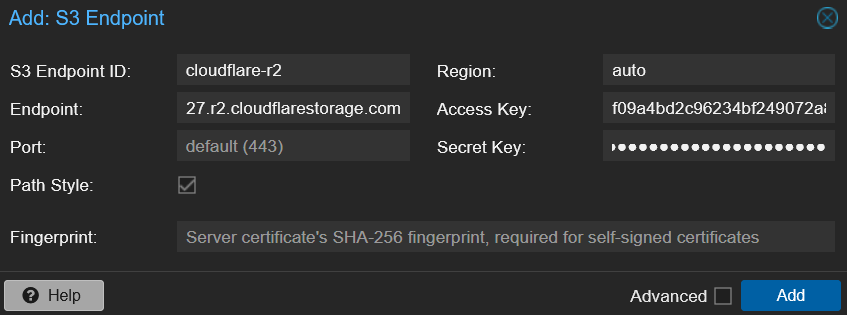
WARNING
Three R2-specific gotchas:
auto. R2 doesn't use traditional AWS regions.Click Add.

Click Datastore > Add Datastore. Fill in the General tab:
| Field | Value | Notes |
|---|---|---|
| Name | r2-offsite | |
| Datastore Type | S3 (tech preview) | Appears once you have an S3 endpoint configured |
| Local Cache | /mnt/datastore/r2-cache | PBS creates this for the local chunk cache |
| S3 Endpoint ID | cloudflare-r2 | The endpoint from Step 3 |
| Bucket | pbs-backups | Pick from the dropdown |
| GC Schedule | weekly | Daily is too aggressive for cloud storage |
| Prune Schedule | none | Remove Vanished on the sync job handles retention |
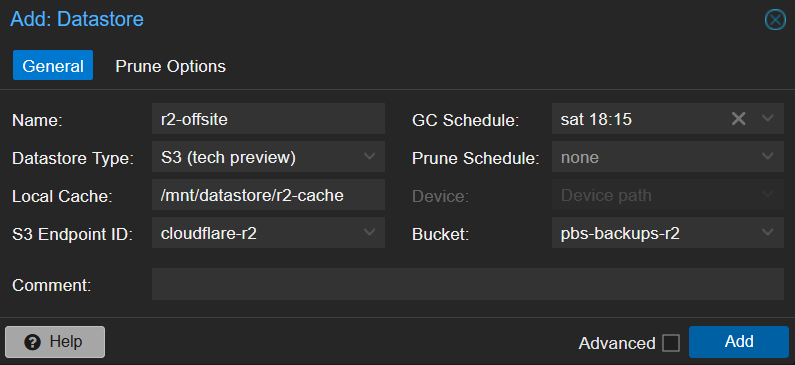
WARNING
If the Bucket dropdown is empty with a 400 error, your R2 API token is bucket-scoped instead of Admin. Go back to Step 2 and recreate with Admin Read & Write.
TIP
Why GC weekly? On a local datastore, GC is free disk I/O. On S3, every chunk operation is an API call. Daily GC burns through API budgets unnecessarily. The PBS docs say "for most setups a weekly schedule provides a good interval."
Click Add.
This is where you decide what goes to R2. Click on the r2-offsite datastore > Sync Jobs tab > Add > Add Pull Sync Job.
Fill in the Options tab:
| Field | Value | Notes |
|---|---|---|
| Local Datastore | r2-offsite (auto) | |
| Sync Schedule | weekly | Cloud should be less frequent than USB |
| Location | Local | See note below |
| Source Datastore | backups | |
| Remove Vanished | check it |
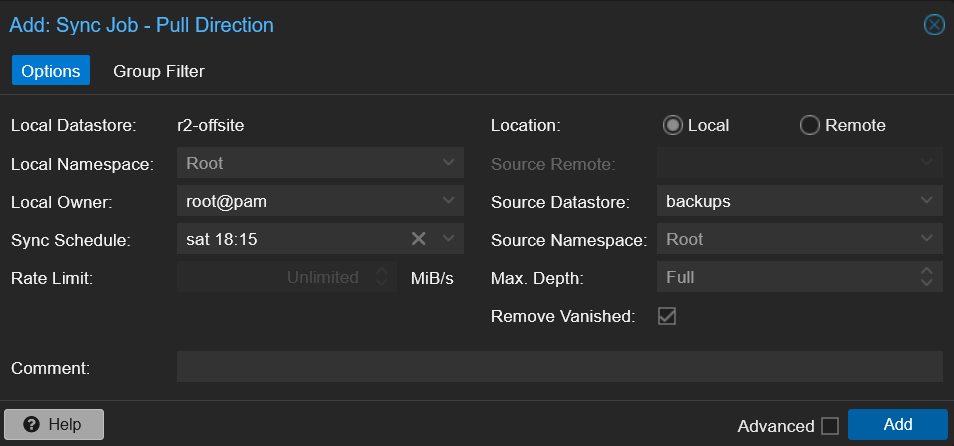
NOTE
Why Local and not Remote? This trips people up. Even though R2 is offsite cloud storage, the r2-offsite datastore is registered on this PBS instance. PBS handles the S3 protocol transparently — from the sync job's perspective, both backups and r2-offsite are local datastores on the same PBS. You'd only use Remote if the S3 datastore were on a different PBS server.
Switch to the Group Filter tab and click Add include:
Groupct/100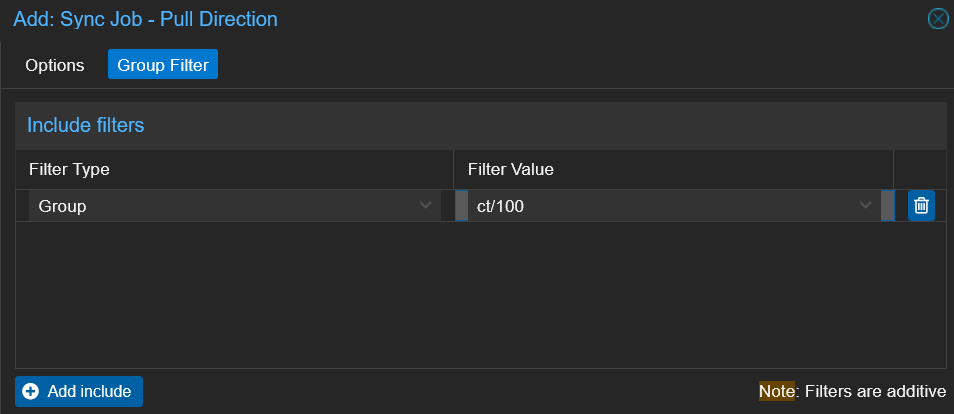
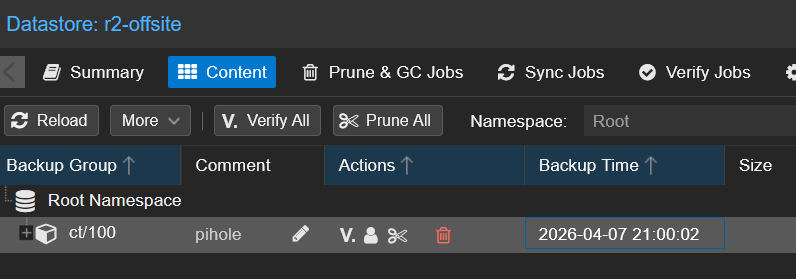
This limits the cloud sync to just Pi-hole — your most critical, hardest-to-rebuild service. Add more Group filters for any other services you want offsite.
TIP
Your USB sync job (Part 1) should still sync everything — local storage is free. Group filters are only worth using on the cloud tier where API calls and storage cost real money.
Click Add.
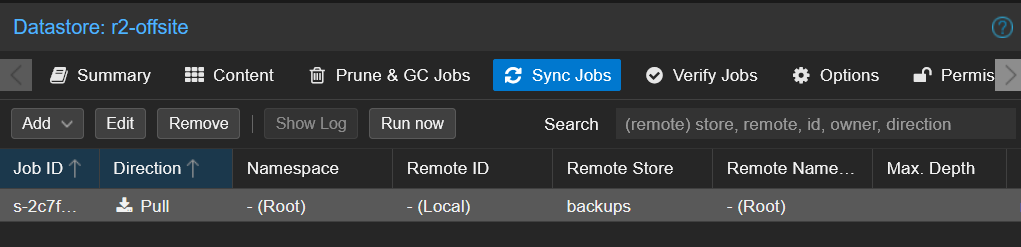
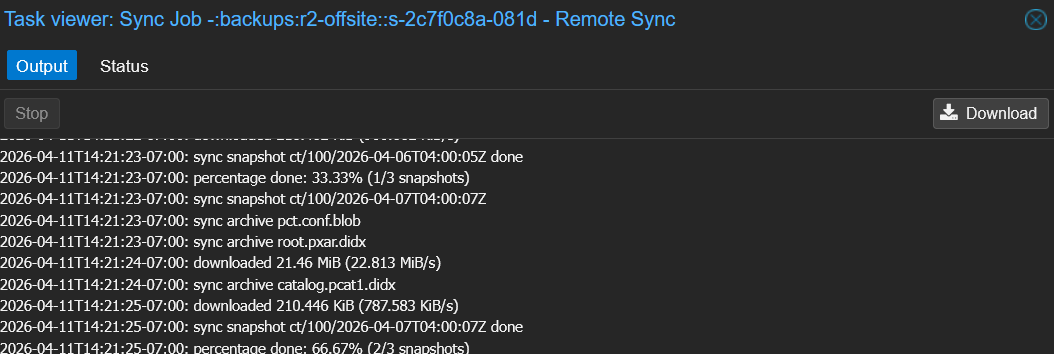
Select the sync job and click Run Now. Watch the task log as PBS uploads chunks to R2.
When it finishes, check the r2-offsite > Content tab. You should see the backup groups covered by your group filter:
Check the Class A and Class B operation counts in the Cloudflare R2 dashboard. After a single CT 100 sync expect roughly ~265 Class A and ~8 Class B operations — negligible against the free tier limits.
Same pattern as Parts 1 and 2: destroy a real container, remove its backup from the primary, then recover from the cloud tier — without any PVE-side configuration changes.
You don't need to follow along with this step. This is a demonstration to show the recovery pattern works end-to-end with cloud storage.
WARNING
This drill destroyed the running CT 100 (Pi-hole) and removed its backup group from the primary backups datastore. Everything was fully restored at the end.
graph LR
    PVE[Proxmox VE] -->|unchanged storage entry| PRIMARY[PBS Primary<br/>backups]
    R2[Cloudflare R2<br/>r2-offsite] -->|reverse sync| PRIMARY

    style PRIMARY fill:#991b1b,stroke:#7f1d1d,color:#fff
    style R2 fill:#064e3b,stroke:#065f46,color:#fff
    style PVE fill:#374151,stroke:#4b5563,color:#fff
I confirmed CT 100 was running, then destroyed it in PVE and removed the ct/100 group from the primary's backups Content tab.
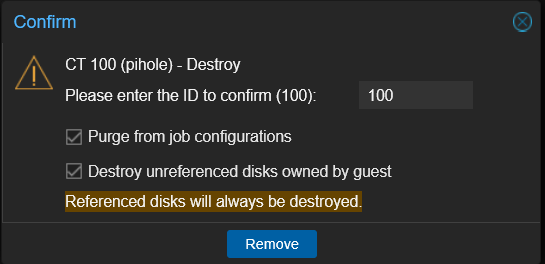
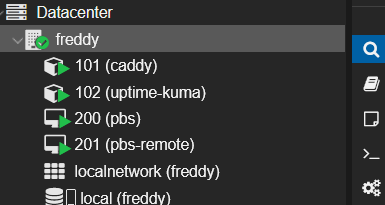
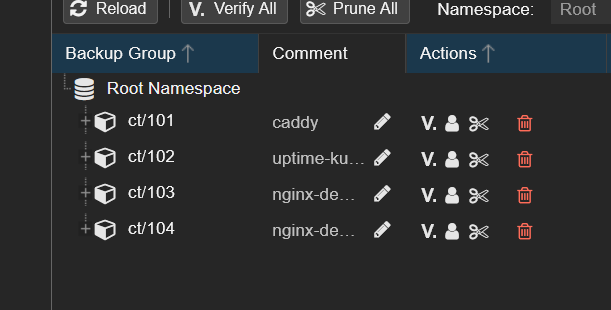
CT 100 is now gone from both PVE and the primary backup datastore. The only copy is in the R2 bucket.
The R2 datastore is on the same PBS instance, so the reverse sync is a local operation — no Remote needed. On the backups datastore, I created a sync job pulling from r2-offsite with a Group Filter for ct/100:
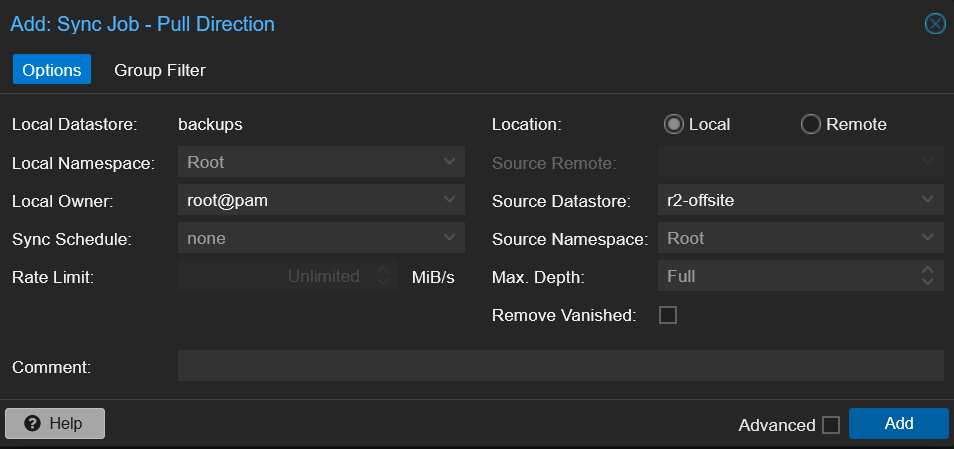
After clicking Run now, PBS pulled the chunks from R2 through the local cache back into backups:
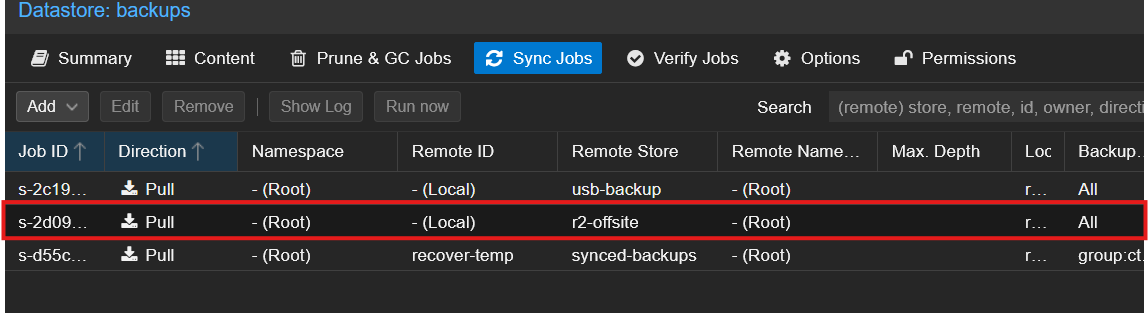
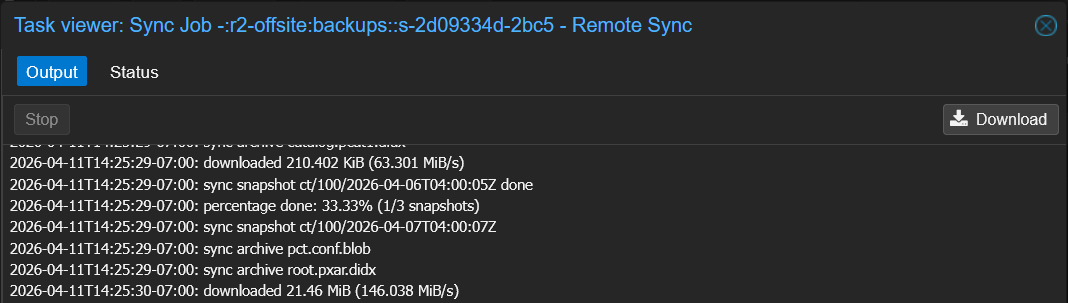
This is the slowest recovery of the three tiers because every chunk comes over the internet — for a Pi-hole-sized container expect 1-3 minutes depending on your download speed. R2's zero egress fees mean this costs $0.
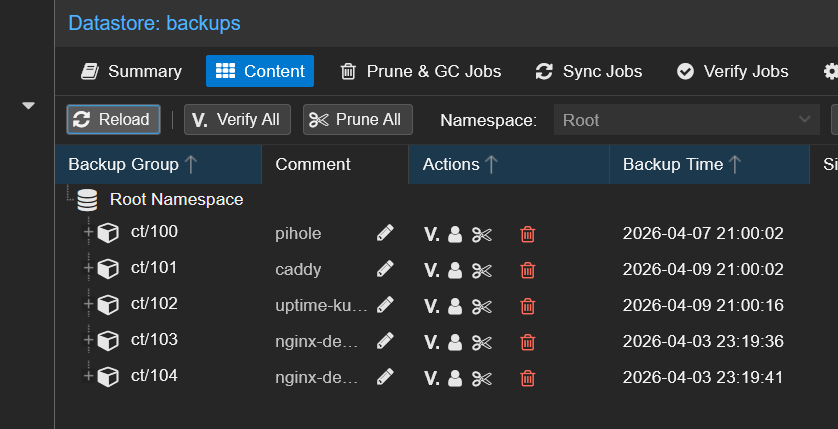
Back on backups > Content, ct/100 is back:
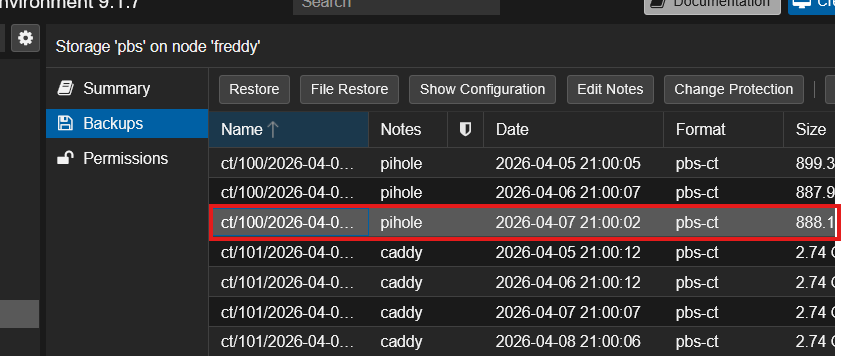
Identical to Parts 1 and 2: in PVE, the pbs storage shows the recovered snapshots immediately:
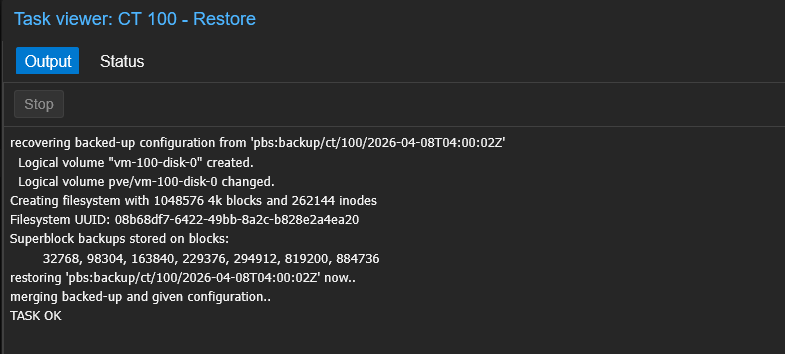
I restored with Start after restore checked:
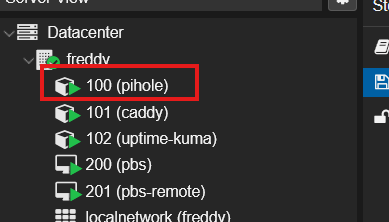
Pi-hole is back:
The same two-disaster recovery as Parts 1 and 2, but the backup data came from the cloud:
| Disaster | Recovery |
|---|---|
| Pi-hole container destroyed in PVE | Restored from PBS via the existing PVE storage entry |
CT 100's backup group removed from primary backups | Rehydrated from Cloudflare R2 via local reverse sync |
R2 survives total site loss. If your house burns down, the USB drive and secondary PBS burn with it. R2 doesn't. That's the "1" in 3-2-1.
NOTE
The R2 reverse sync is simpler than Part 2's because no Remote is needed. The r2-offsite datastore is already on the same PBS — it's just backed by cloud storage. The sync job treats it like any other local datastore.
| Item | Cost |
|---|---|
| Storage | $0.015/GB/month ($15/TB) |
| Class A operations (writes) | First 1M free, then $4.50/M |
| Class B operations (reads) | First 10M free, then $0.36/M |
| Egress (downloads) | Free |
| Free tier | First 10 GB |
For most homelabs syncing only critical containers, you'll stay within the 10 GB free tier and pay $0/month indefinitely.
Your R2 API token is bucket-scoped instead of Admin. Recreate with Admin Read & Write permissions.
Verify: Path Style is checked, Region is auto, and the Endpoint has the full URL from the S3 API field on the R2 page.
The r2-offsite datastore lives on this PBS instance even though R2 is offsite. Select Local, not Remote. You'd only use Remote if the S3 datastore were registered on a different PBS server.
Normal for the first few runs — PBS needs to scan every chunk in the bucket. Keep GC weekly, not daily, to minimize API calls.
You now have a complete 3-2-1 backup strategy:
The 3-2-1 rule, satisfied:
Test your restores regularly. R2 is the cheapest tier to test against (zero egress), so there's no excuse not to.
Part 1: USB Removable Datastores | Part 2: PBS-to-PBS Pull Sync