.png)
OpenClaw on AMD Strix Halo: Set Up a Self-Hosted AI Agent with 128GB Unified Memory
March 26, 2026Tutorial
⚠This site is under active development. Some features may not work as expected, and new content is being added regularly.
After Parts 1-5, the setup works but has rough edges. Element Web throws "browser not supported" warnings over HTTP. Service workers won't load, so avatars and uploaded images don't display. Credentials are sent unencrypted on the LAN. And you need an SSH tunnel just to access WebChat.
This is a short one. Three DNS records, three Caddy entries, a few config updates. Takes the setup from "it works on my LAN" to "I'd actually leave this running."
NOTE
This is Part 6 (bonus) of a 6-part series. Everything functional was built in Parts 1-5. This part is polish — HTTPS, proper URLs, no browser warnings, no SSH tunnels.
http://10.1.20.152) — proper subdomains (https://element.hake.rodeo)https://claw.hake.rodeo)All three domains point to Caddy's IP. Caddy handles HTTPS termination and proxies to the actual services.
In Pi-hole's admin UI (or via the REST API):
matrix.hake.rodeo -> your Caddy IP (e.g., 10.1.10.101)element.hake.rodeo -> your Caddy IP (e.g., 10.1.10.101)claw.hake.rodeo -> your Caddy IP (e.g., 10.1.10.101)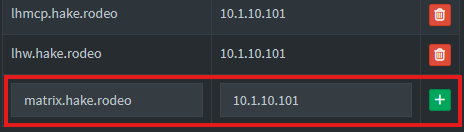
NOTE
Replace hake.rodeo with your own domain, and the Caddy IP with wherever your reverse proxy lives.
Verify all three resolve:
dig +short matrix.hake.rodeo @YOUR_PIHOLE_IPdig +short element.hake.rodeo @YOUR_PIHOLE_IPdig +short claw.hake.rodeo @YOUR_PIHOLE_IP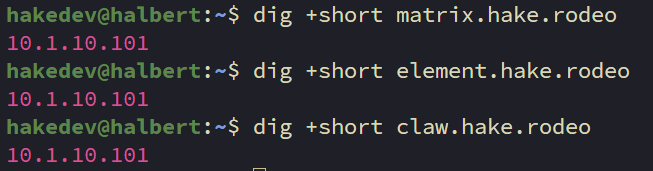
All three should resolve to your Caddy IP.
Open the Caddyfile:
nano /etc/caddy/CaddyfileAdd the following three entries:
# Matrix homeserver (Continuwuity)
matrix.hake.rodeo {
    reverse_proxy 10.1.20.152:8008
}

# Element Web Matrix client
element.hake.rodeo {
    reverse_proxy 10.1.20.152:80
}

# OpenClaw Gateway (WebChat + Control UI)
claw.hake.rodeo {
    reverse_proxy YOUR_OPENCLAW_IP:18789
}
Caddy handles WebSocket proxying automatically — no extra config needed for OpenClaw's WebChat connection.
NOTE
If your Caddy uses a global acme_dns block for Cloudflare DNS challenge (like ours does), you don't need per-site TLS config. Caddy handles certificates automatically.
Reload Caddy:
sudo systemctl reload caddyWARNING
Don't use caddy reload from the CLI if your Cloudflare API token is in the systemd environment. The CLI doesn't have access to systemd env vars and will fail with "API token appears invalid." Use systemctl reload caddy instead.
Verify all three endpoints:
curl -sk https://matrix.hake.rodeo/_matrix/client/versions | head -1curl -sk https://element.hake.rodeo | head -5curl -sk https://claw.hake.rodeo | head -5Add the new HTTPS URL to the allowed origins so WebChat works through the reverse proxy:
openclaw config set gateway.controlUi.allowedOrigins '["http://localhost:18789","http://127.0.0.1:18789","https://claw.hake.rodeo"]'NOTE
Keep the localhost entries — they're needed if you ever access the UI directly. The new HTTPS entry tells the gateway to accept WebSocket connections from the Caddy-proxied URL.
Update the homeserver URL so OpenClaw connects to Matrix over HTTPS:
openclaw config set channels.matrix.homeserver "https://matrix.hake.rodeo"Now restart the gateway to apply both config changes:
systemctl --user restart openclaw-gatewayTell Matrix clients to use the HTTPS URL. Open the config on your Matrix container:
nano /etc/conduwuit/conduwuit.tomlFind the [global.well_known] section and update it:
[global.well_known]
client = "https://matrix.hake.rodeo"
server = "matrix.hake.rodeo:443"
Restart Continuwuity:
systemctl restart conduwuitNOTE
The server_name stays unchanged. We're only updating where clients connect — not the identity.
Open the Element Web config:
nano /var/www/element-web/config.jsonUpdate the base_url to use HTTPS:
{
    "default_server_config": {
        "m.homeserver": {
            "base_url": "https://matrix.hake.rodeo"
        }
    },
    "disable_custom_urls": false,
    "disable_guests": true,
    "disable_3pid_login": true,
    "brand": "Element",
    "default_theme": "dark",
    "default_federate": false,
    "room_directory": {
        "servers": []
    }
}
No service restart needed — it's a static file served by nginx.
Open https://element.hake.rodeo in your browser.
Log in and verify the bot is connected.
Open https://claw.hake.rodeo in your browser. You'll be prompted for the gateway token — enter it to authenticate.
After entering the token, WebChat will show "pairing required." This is the device approval flow. On the OpenClaw machine, check for the pending request:
openclaw devices list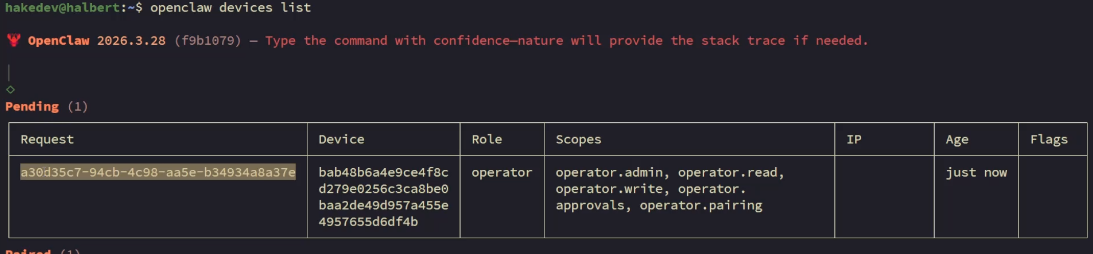
You should see a pending request from the new WebChat connection. Approve it using the request ID:
openclaw devices approve REQUEST_ID
Refresh the WebChat page — it should connect. Chat with the agent to confirm it's working.
No more ssh -L 18789:localhost:18789 — just a clean URL.
Trigger a failure to test the complete pipeline over HTTPS:
pct exec 150 -- systemctl stop nginxThe investigation report should land in Matrix through the HTTPS connection. After verifying:
pct exec 150 -- systemctl start nginxSix parts, one AI monitoring pipeline:
From a fresh Ubuntu Server to a fully self-hosted AI monitoring system with automated incident investigation, Matrix reporting, tested backups, and HTTPS. Running entirely on local hardware with no cloud dependencies.
.png)
.png)
.png)
.png)
Some links are affiliate links. I may earn a small commission at no extra cost to you.